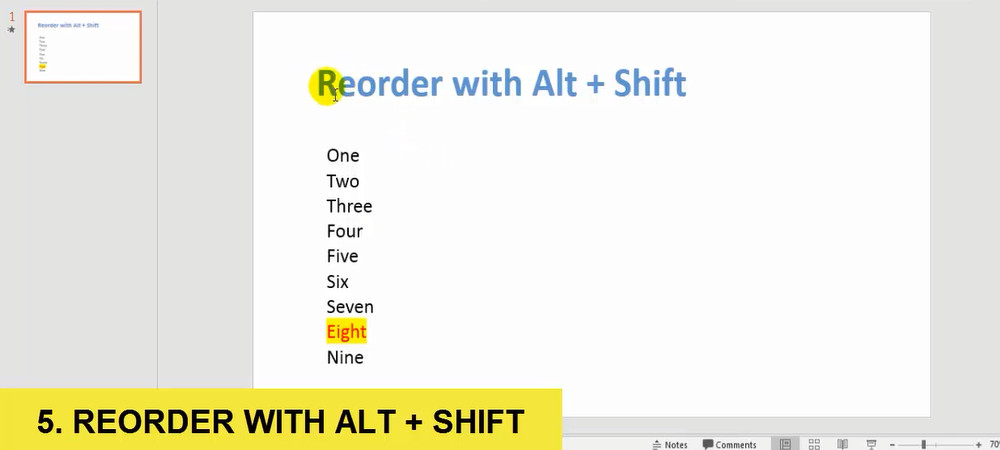
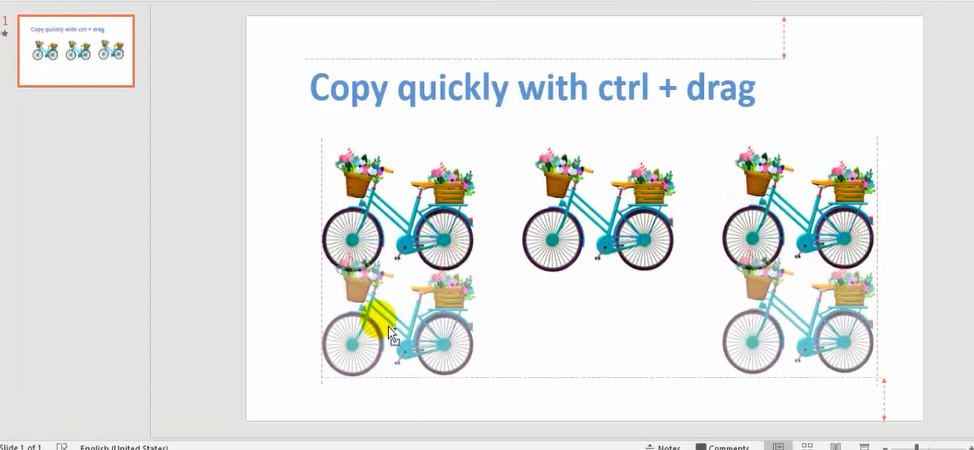
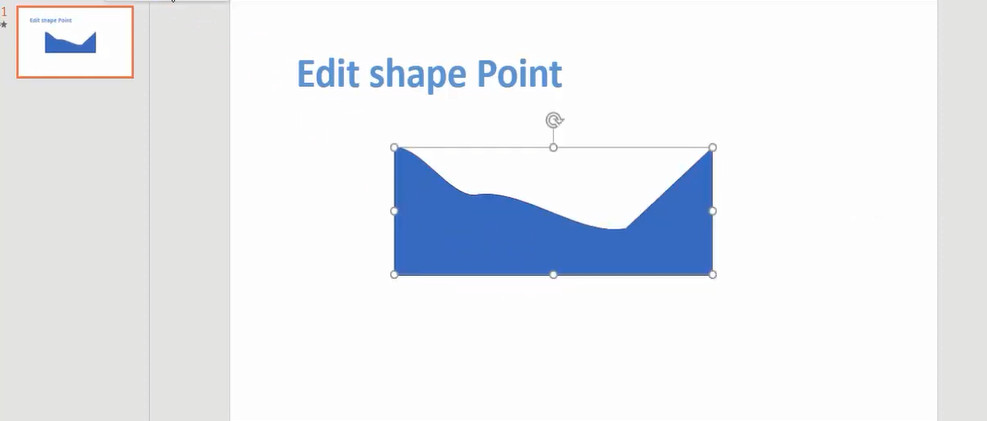
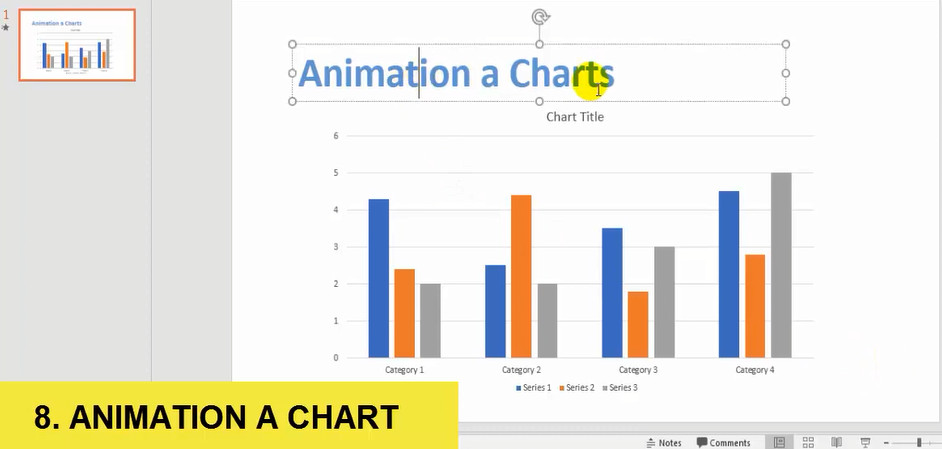
Here is some tips and tricks for using PowerPoint. You can learn when see this video. It’s very easy. With this video you can learn some tips to help your presentation better. This list below is the top of PowerPoint Tips and tricks:
Make video in text is one of the often effects I use in Filmora video editor. In this lesson, you will learn detail about how to add video to text by use Filmora9 video editor. You can add video to text and share your video content with the world in just a few minutes. And in my channel you can learn and see more video about filmora effects such as: glitch text effect, shake effects…
In this lesson I will teach you how to make smoke text effect in Filmora wondershare 9. Filmora9 makes it easy to create text & titles that match your style. You can even add animated text effects like dialog balloons. Captions, lower 3rds,subtitles, openers, and end credits are among the text options available in Filmora. In this guide you will learn how to add video, add smoke effects to video, add text.
How to add video.
First open Filmora video editor
Then click import media filre here, choose video you want
In this lesson you will learn about the top basic excel formulas and functions. The basic Excel formulas is critical for beginners to become highly proficient in financial analysis. Microsoft Excel is considered the industry standard piece of software in data analysis. Microsoft’s spreadsheet program also happens to be one of the most preferred software by investment bankers and financial analysts in data processing, financial modeling, and presentation. This guide will provide an overview and list of basic Excel functions.
You have 2 ways to do calculation in Excel:
1. Formulas
In Microsoft Excel, a formula is an expression that show values in a range of cells or a cell. For example, =B1+B2+B3, which finds the sum of the range of values from cell B1 to cell B3.
2. Functions
Functions are predefined formulas in Excel. For example: =SUM(B1:B3). This function will sums all the values from B1 to B3. Each strategy comes with its own advantages. Therefore, before go to the main formulas and functions we’ll make clear all methods, so you can create your preferred workflow earlier on.
in this video I will teach you how to speak excel on enter. This is very detail step by step. Enable Speak Cells in Excel Under the “Choose commands from” dropdown choose “All Commands” then choose the Speak Cells commands. This feature will help you save your time.
First you need to enable this feature. Then select the cells that you want Excel to convert to speech and click on the Speak Cells button. Make sure you have the headphones/speaker plugged it. Excel tries it’s best to pronounce the text you enter. If you enter numbers, it will read out the numbers. If you enter random text which is not a word, it will read out the alphabets, but if it is something which is a word, it will pronounce it.
If you want to make a chart, you can search how to do this on internet. But I will recommend you the easy way to do this.
You need open the Ms Excel first. Then follow this step in below:
Highlight the data for which you want to create a chart.
Go to INSERT menu > Recommended Charts.
On the Recommended Charts tab, scroll through the list of charts that Excel recommends for your data, and click any chart to see how your data will look. …
When you find the chart you like, click it > OK.
to make a chart very easy, just select the data you want in the chart and press ALT + F1 to create a chart immediately.







 Enix Tutorials