You have a PDF file. And you want to share this file with your friend or someone.. Just go to your mail service such as gmail, yahoo… Upload this PDF file and share.
Note: You can send up to 25 MB in attachments. If your file is too big size. You should reduce PDF file size. Please see this steps in below for more detail how to do this:
Step 1: Open your browser such as Google Chrome or FireFox.
Step 2: Go to Website: smartpdf. com. Choose compress PDF button.
Step 3: Choose Free method, upload PDF file.
Step 4: Upload file and click start. After that waiting…
Step 5: Download file.. You can see the result. Size reduce more than you think.
I hope that this tips can help you easy to control and sharing file with other people..
So, In this article, you’ll learn about how to make brochure in PowerPoint. Yes, it’s PowerPoint, no use other software.
As you can see, in picture below. So, I will teach you how to make this step by step.
Picture 1: Brochure in powerpoint
I will show you the basic step to do this first.
Create 3 shapes rectangle.
Then insert some oval shapes, and circle shapes.
Insert circle shape.
Resize shapes, change color and remove outline.
Add pictures, text and title.
Now, we go to detail each step.
Create 3 shapes rectangle.
Go to Insert > Shapes > Rectangle: Draw a rectangle. Resize, then copy to 3 shapes. You should adjust size of 3 shapes to fit with background paper.
Picture 2: Insert a rectangle.Picture 3: Make 3 rectangles.
Now, we going to change color of each rectangle shape.
Picture 4: Change color of each rectangle.
2. Insert some oval shapes, and circle shapes. Go to Insert menu, draw some oval shapes. After that, rotate it a little bit about 5 – 10 degree.
Picture 5: Insert oval shapes.
Trim unwanted part of shape by use Intersect feature.
Picture 6: Trim the oval shape.
Now, copy this shapes, to 2 other shapes by press Ctrl + D button 2 times.
Picture 7: Copy and duplicate shape.
Insert a rectangle by go to Insert > Shapes > Rectangle.
Picture 8: Insert a rectangle.
Use Merge Shapes > Subtract to trim the oval shapes.
Picture 9: Trim the shapes.
3. Insert circle shape. Now, we start insert a circle shape in center of background. Insert > Shapes > Circle.
Picture 10: Insert a circle
4. Resize shapes, change color and remove outline. Insert some shapes, and remove shape outline, you can have design similar with picture below:
Picture 11: The draft brochure after design.
The final step: 5. Add pictures, text and title. Choose the shape, then right click > Format shapes: Choose fill color by picture or texture. After that choose the picture you want to add shape. If you not clear any step, or want to see more detail. Please see this video in below here to the end of video.. I just make this video to explain for you. Of course, it’s FREE.
Video teaching about how to make brochure in PowerPoint software.
In this post you will learn how to make good PowerPoint presentation, so you can use this idea for your presentation. It’s really easy to use and effectively. As you know, the main purpose of any kind of presentation is communication. It need more informative, engaging, inspiring, and motivating. And, for help you one of the factor of presentation, you need beautiful slide design, catchy your audience.
So, let’s start !
You can see in picture below here is one example of awesome PowerPoint presentation.. And today we will learn how to make it step by step..
Pic 1: awesome presentation slide design in PowerPoint.
Step 1: Open your PowerPoint software.
Step 2: Go to insert menu, then click Pictures. Choose picture you want use.
Step 3: Choose the picture you want, you can crop this picture if you want..
Step 4: Then go to insert menu, click on shapes, then click on rectangle icon. Hold Shift button, and draw a rectangle.
Step 5: Choose picture, go to Format menu, choose:
Shape fill: choose no fill color.
Shape outline: Choose White color.
Step 6: Choose rectangle, and press Ctrl + D to duplicate to many shapes like this picture.
Step 7: Ctrl + A to select all shapes, then right click choose Group > group to make group shape.
Step 8: Right click on this group shape, then choose Format picture, choose Picture or texture fill. Then choose the previous picture..
Step 9: Adjust the offset of picture to fit with background picture. You can adjust in offset section.
Step 10: Press Delete button to delete picture,
Step 11: Right click on background, choose fill color by gradient..
Step 12: If you want to add more text and title, you can go to insert menu > text box.
And you will have the result like this:
You can see this video in below for more detail and easy to understand:
If you want to make a professional PowerPoint presentation, use for your work, business or just for homework. I think that this tutorial is for you. When I was a students, sometime I need some PowerPoint template for making presentation. But it’s really difficult, cause some of presentation I like not free at all. As you know, student don’t have much money. And I decide design 1 for myself. So, if you want to make a simple and attractive presentation, please follow me to see this tutorial.
Today In this lesson, I will show you how to make presentation like this picture in below:
Example of simple PowerPoint presentation and effective.
Step 1: First, you need open Microsoft PowerPoint, then go to Insert menu > shapes > rectangle with round. Click this rectangle and draw.
Step 1: Insert a rectangle with round.
Step 2: Select this rectangle shape, then press Ctrl + D to make duplicate shape.
And resize this shape if you want.
Step 3: Repeat this step 2 several times, until you want or have the result like this picture in below:
Step 3: Make and duplicate shapes.
Step 4: Select all shape, then right click choose group > group. Purpose of this step is make group shapes.
Step 4: Make group shapes.
Step 5: Choose group shapes, then go to Format menu > shape outline > No Outline. As you can see, after do this step, all shape outline disappear (remove).
Step 5: remove shape outline
Step 6:Right click, choose format shapes.
Step 7: On the right side, choose Fill tab, then click choose Picture or texture fill.
Step 7: Fill color or picture for group shapes
Step 8: Choose the picture you want to use for your presentation.
Done.
If you want to see more detail, please see this video for more:
If you want to see more tutorial about slide design or how to make a professional PowerPoint presentation, please follow our blog, or you can see more video in our channel. Thanks for reading !.
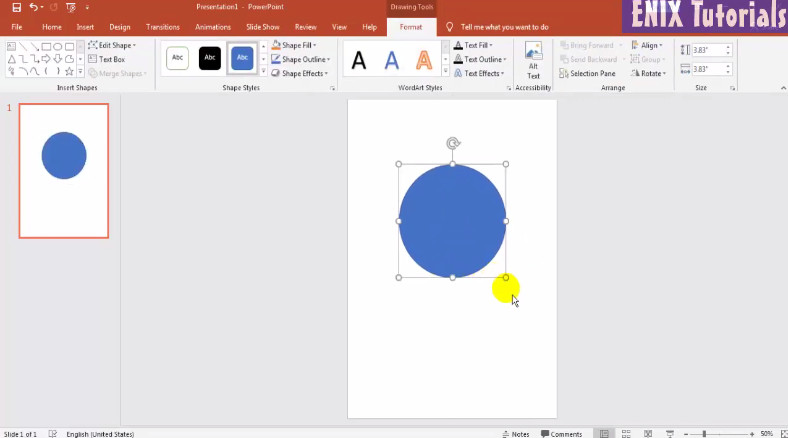
In the last lesson, I already guide you how to make a basic of portfolio in PowerPoint. Today we continue this series. Open the PowerPoint software first, then choose the blank layout and A4 paper slide size. Add one circle like below:
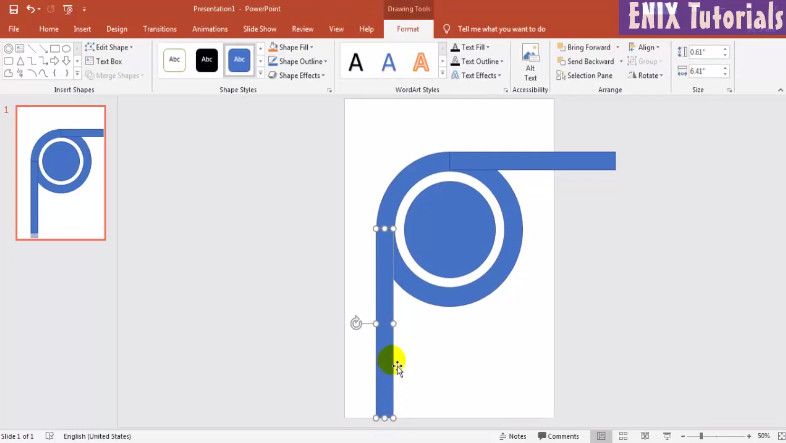
Then you can add one more circle with concentric. Go to insert menu, shape and circle shape.
Go to insert shape menu to add rectangle. After that choose the rectangle, right click choose send to back.
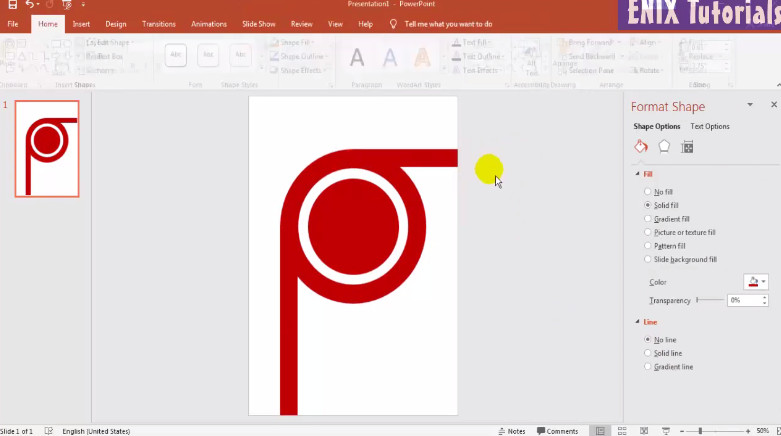
Change the color of all shapes to color you want to use. in this lesson, I use red color. And with all shapes you should choose no shape outline.
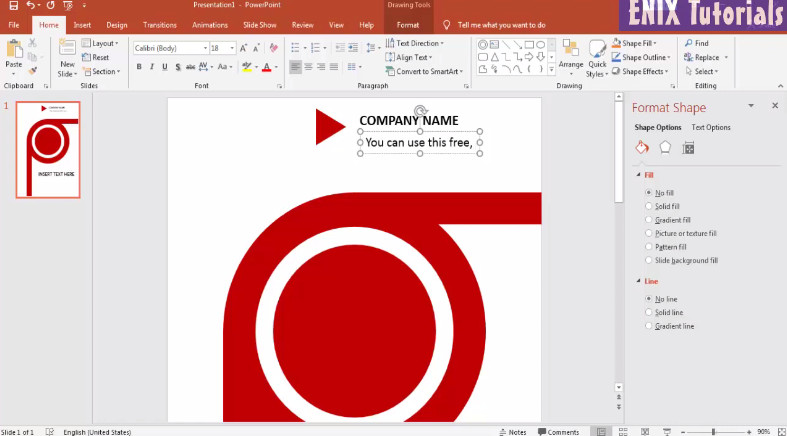
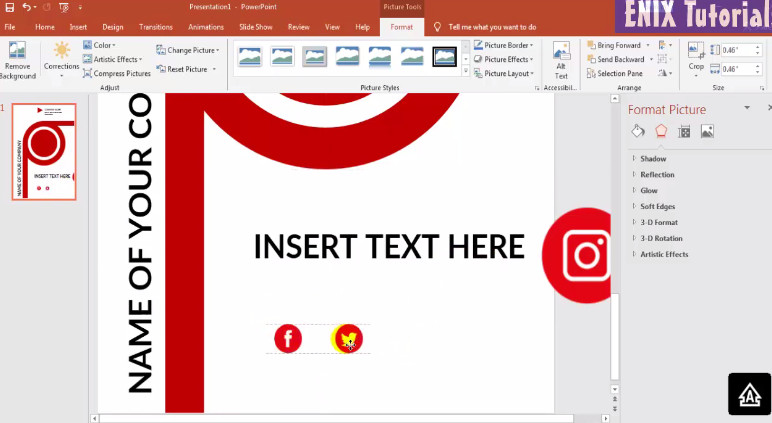
Add some more text and icons like this
And insert some social icons, you should choose the red icons color.
Today I will teach you how to make Portfolio in Microsoft PowerPoint with detail. or you can see this video in the end of this lesson. Now let’s start !
Open the Microsoft PowerPoint then choose Design menu, choose Slide Size. A4 and portrait.
Then you go to insert menu , click shapes and choose triangle shape to draw a triangle. After that, add a rectangle, rotate and move to position like picture below.
Then add one triangle shape
You need to trim the shapes on out of bolder paper.In this lesson I will use the merge feature. Go to Insert > shapes > rectangle shape to add one rectangle on top of it like this
After that select the shape you want trim and the rectangle. go to Format menu > Merge shapes > Subtract. You will see this is the result.
Select all shape and choose red color. And no shape outline.
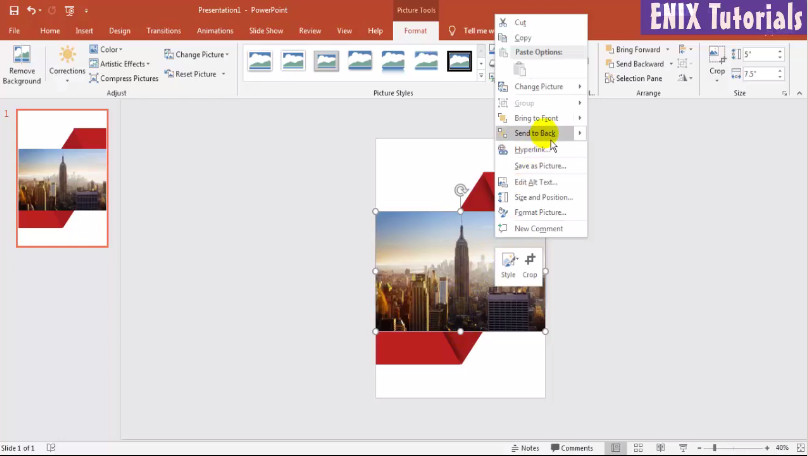
You can add some shadow for each shape by right click on each shape. Choose format picture > shadow and adjust the shadow. Add picture, go to insert menu, choose pictures and choose the image you want to use.
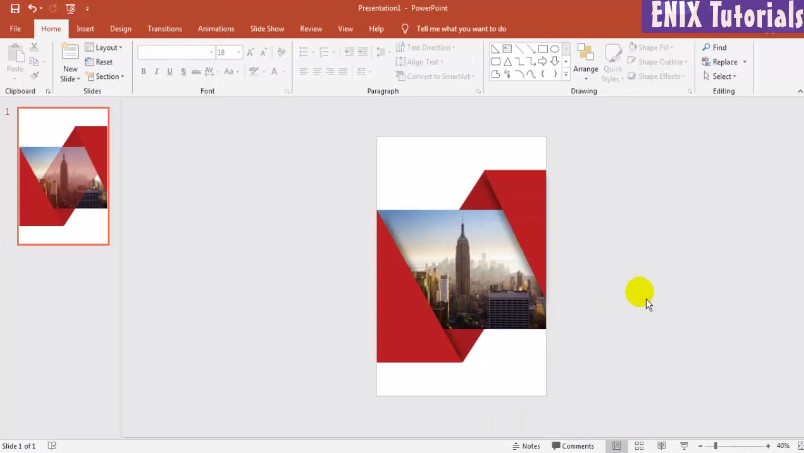
Right click on this picture and choose send to back. You adjust the picture until look like this:
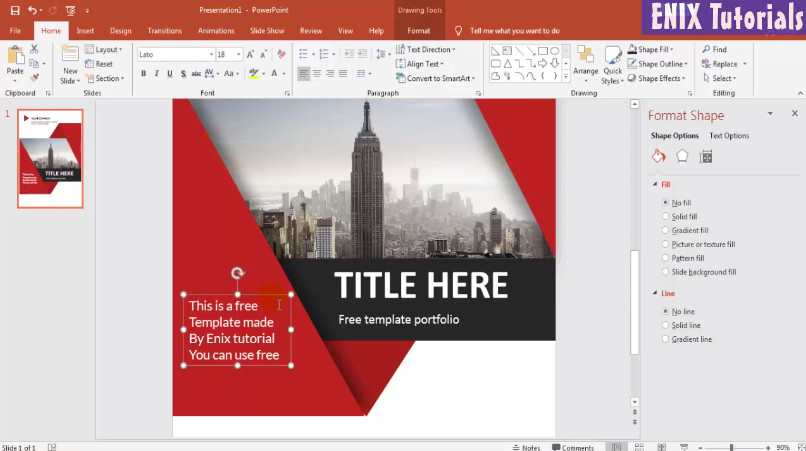
You can add more text like this
And for more fancy, you can add some icons. In this video I add 3 social icons.
That’s all about tutorial how to make a basic portfolio in PowerPoint. I hope after see this tutorial, you can easy to make and bouncing ideas to make a portfolio easy. See more video about PowerPoint Presentation video in my channel. If you want to more easy understand, please see this video in below:
In this lesson, I will teach you how to make PowerPoint Presentation for seminar, your work or report. First you need open the software Microsoft PowerPoint. Then right click and choose format background.
Choose Picture or texture fill, then select the picture you want to make background.
Then go to Insert menu > Shapes and click on triangle shape.
Click and drag mouse to draw a triangle.
Rotate 90 degree
Resize the shape, select shape and right click, choose format shape > picture or texture fill.
Then add a rectangle, go to insert menu > shapes > rectangle
Draw a rectangle, and rotate like this
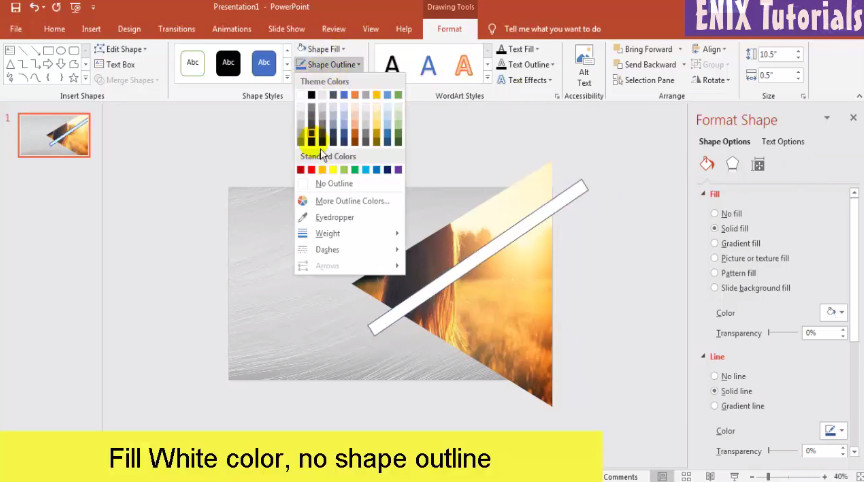
Select rectangle, and choose fill color white, no shape outline.
Then select this rectangle, copy and paste. Repeat this action several times
Repeat this action until finish. Then you can insert some text title, change font, color and size. Add some icons if you want. This is the result as below:
For more detail, please see this video for understand how to make PowerPoint presentation step-by-step. Thank you. See you again!
This lesson you will learn how to make a powerpoint presentation in Microsoft Powerpoint. Go to Start > Program > and open the Powerpoint program. Choose Blank layout
Add a picture you want to use background
Insert a rectangle with rounded corners, resize it.
Rotate and copy to other position
Copy to many shapes like this
Select all shapes and right click choose group
Right click choose fill by picture, choose picture you want to use
And choose no shape outline. Trim shape if you want
Result like this
I need add some text, go to insert menu, choose text box, type text, you can change font, color and size of text
If you want to change picture, right of this picture. choose picture you want to useFor more detail, see this video:












 Enix Tutorials