
In the last lesson, I already guide you how to make a basic of portfolio in PowerPoint. Today we continue this series. Open the PowerPoint software first, then choose the blank layout and A4 paper slide size. Add one circle like below:
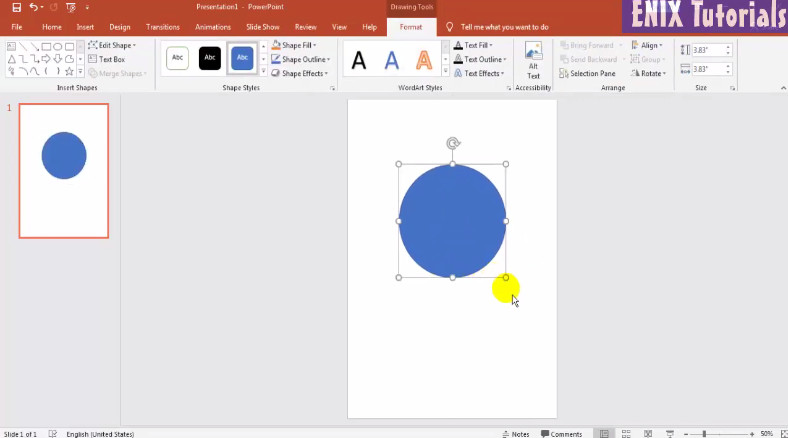
Then you can add one more circle with concentric. Go to insert menu, shape and circle shape.

Go to insert shape menu to add rectangle. After that choose the rectangle, right click choose send to back.
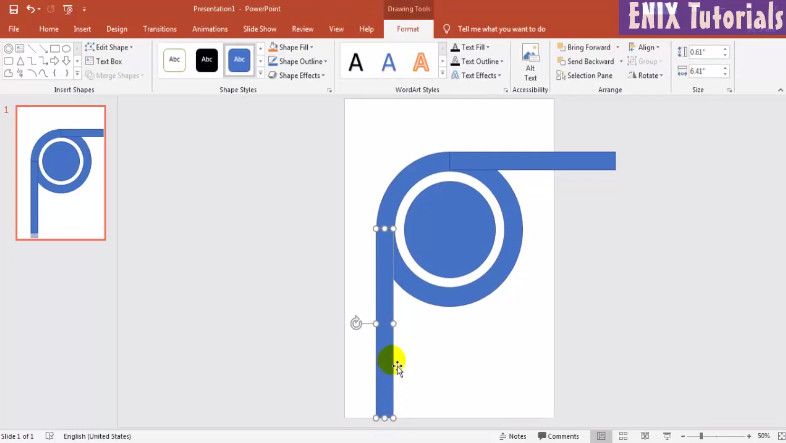
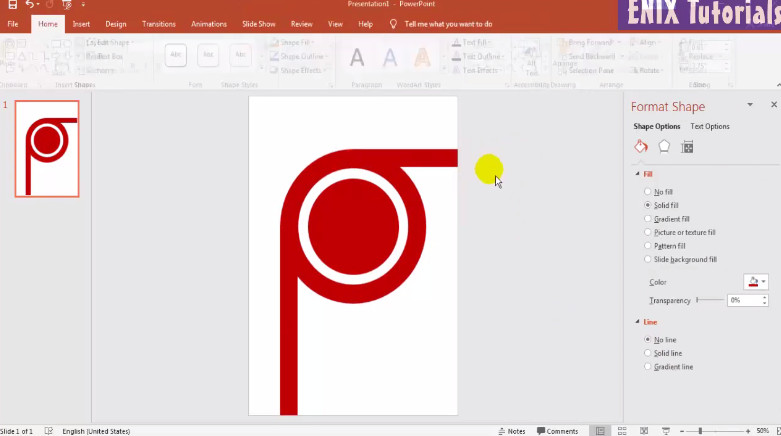
Change the color of all shapes to color you want to use. in this lesson, I use red color. And with all shapes you should choose no shape outline.
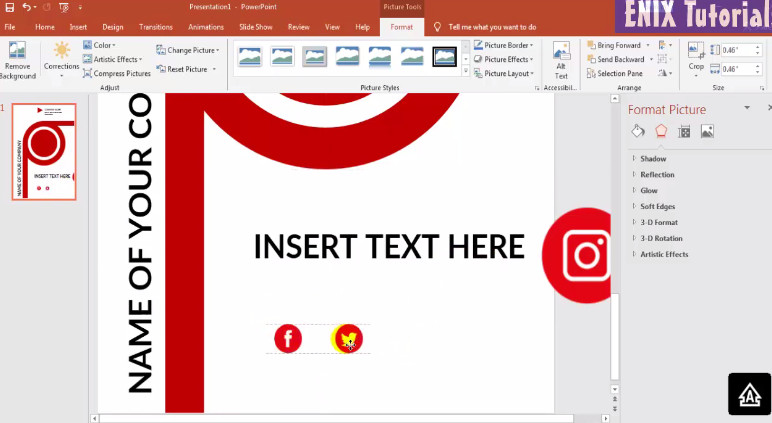
Add some more text and icons like this
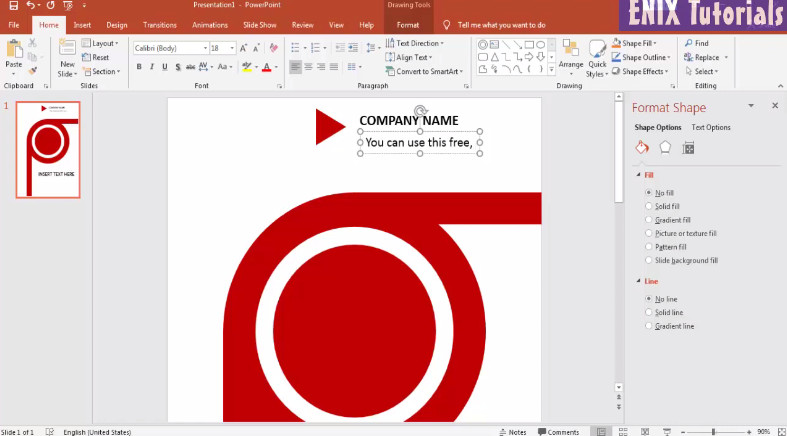
And insert some social icons, you should choose the red icons color.
You can see this video for more detail:
 Enix Tutorials